Color Picker
Professional color management with HDR support
Overview
The Color Picker is a dockable panel that replaces Nuke's built-in color chooser with a full-featured, HDR-capable swatch manager. It stores palettes persistently, supports drag-and-drop to and from Nuke knobs, viewer color sampling, palette extraction via K-means++ clustering, and import/export in industry-standard formats.
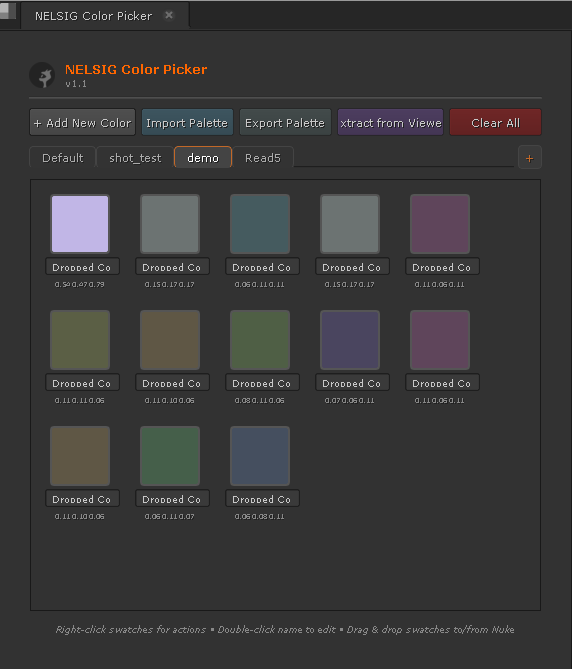
Opening the Picker
There are two ways to open the Color Picker:
- Panes menu — Panes → NELSIG → Color Picker. The panel can be docked into any Nuke pane layout.
- Hotbox — If the Hotbox tool is installed, the Color Picker is available as a quick-launch entry from the radial menu.
Swatch Management
Adding swatches
- HDR Picker — Click the + button to open the HDR color picker dialog and choose any color, including values above 1.0.
- Drag from Nuke — Drag a color value from any Nuke knob directly onto the swatch grid.
- Viewer sample — Sample a pixel or area from the Nuke viewer and add it as a swatch in one click.
- Extract from viewer — Run K-means++ palette extraction to generate a group of representative swatches from the current viewer image.
Editing swatches
Double-click any swatch to re-open the HDR picker dialog with the current color pre-loaded. The swatch updates in place when you confirm.
Deleting swatches
Right-click a swatch and choose Delete, or select one or more swatches and press Delete.
Groups & Tabs
Swatches are organized into groups, displayed as tabs along the top of the panel.
Creating a group
Click the + tab button at the end of the tab bar to create a new group. You will be prompted for a name.
Managing groups
- Switch — Click a tab to display its swatches.
- Reorder — Drag tabs left or right to rearrange them.
- Rename — Double-click the tab label to edit the name inline.
- Duplicate — Right-click the tab → Duplicate Group.
- Delete — Right-click the tab → Delete Group. A confirmation dialog prevents accidental loss.
Data format
Groups and swatches are stored as JSON. Each swatch records its RGB values as 32-bit floats (linear), preserving the full HDR range. See Data Storage for the file location.
HDR Color Picker Dialog
The HDR picker opens as a modal dialog whenever you create or edit a swatch. It provides precise control over the full dynamic range.
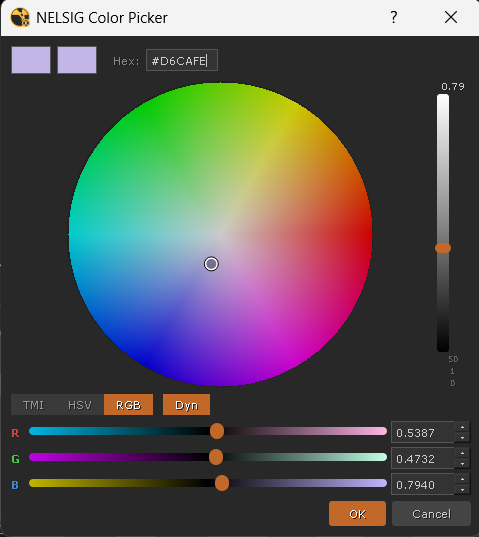
Hue / Saturation wheel
Click or drag on the circular wheel to set hue and saturation simultaneously. The wheel updates dynamically to reflect the current gain level.
Gain slider
The vertical gain slider uses an exponential scale from 0 to 50, giving fine control in the 0–1 SDR range while still reaching extreme HDR highlights.
Slider modes
Toggle between three slider-bank modes using the buttons above the sliders:
| Mode | Channels | Range |
|---|---|---|
| RGB | Red, Green, Blue | 0 – 50 |
| HSV | Hue, Saturation, Value | H: 0–360, S: 0–1, V: 0–50 |
| TMI | Temperature, Magenta, Intensity | T: -1–1, M: -1–1, I: 0–50 |
Additional controls
- Dynamic gradients — Each slider track renders a real-time gradient showing how the color changes along that axis.
- Mouse wheel — Scroll on any slider or the gain bar for fine incremental adjustments.
- Hex input — Type a hex code (e.g.
#FF6600) into the text field for exact SDR values. - Old / New swatches — A split preview shows the original color alongside the new selection so you can compare before committing.
RotoPaint Integration
The Color Picker has dedicated shortcuts for RotoPaint workflows:
- Ctrl+click a swatch — Sets the color as the current brush color on the active RotoPaint node.
- Alt+click a swatch — Applies the color to the currently selected stroke in the RotoPaint curve list.
Smart Color Apply
When you click a swatch (without modifiers), the picker intelligently detects the selected node type and applies the color to the most appropriate knob:
| Node type | Behavior |
|---|---|
| RotoPaint | Sets the overlay color on the node (use Ctrl/Alt for brush/stroke) |
| Single color knob | Applies directly to the color knob (e.g. Constant, Fill) |
| Multiple color knobs | Shows a menu letting you choose which knob to set |
| No color knob | Sets the node's tile color for visual organization |
Viewer Color Sampling
Point sampling
Click the eyedropper button, then click a single pixel in the Nuke viewer. The sampled value is added as a new swatch with full 32-bit float precision in linear color space.
Area sampling
Drag a rectangle in the Nuke viewer to sample an area. The picker averages up to 2500 pixels within the bounding box to produce a representative color.
Technical details
- Uses
nuke.activeViewer().node()['colour_sample_bbox']to read the sampling region. - Pixel values are read with
node.sample('red', x, y)etc., returning true 32-bit float values in linear space. - The sampled color is stored without any view transform applied — what you see in the swatch is the raw linear value.
Extract Palette from Viewer
How to use
- Frame the image you want to analyze in the Nuke viewer.
- Click the Extract Palette button in the Color Picker toolbar.
- Choose the number of colors to extract (default: 6).
- The extracted colors appear as a new swatch group.
K-means++ algorithm
The extraction uses K-means++ clustering to find the most representative colors in the image. K-means++ improves on standard K-means by choosing smarter initial centroids, producing more consistent and perceptually meaningful palettes.
Use cases
- Extracting a color script from reference images.
- Building a palette that matches plate photography.
- Quickly generating harmonious swatch sets from texture maps.
Match Color
Match Color creates a Grade node that transforms one color into another, useful for quick color matching between elements.
Workflow
- Right-click a swatch — Choose Match Color from the context menu. This swatch becomes the target color.
- Sample the source — Click or drag in the viewer to pick the color you want to transform from.
- Live preview — A Grade node is created immediately and connected to the selected node. The viewer updates in real time as you adjust.
- Validate — Click Apply to keep the Grade node, or Cancel to remove it.
Grade node structure
The generated Grade node uses:
- Gain — Scales the source color to match the target brightness.
- Multiply — Adjusts per-channel ratios to match hue and saturation.
- Label — Automatically set to
[NELSIG Match Color]for easy identification.
Color Harmonies
Right-click any swatch and choose Generate Harmonies to create a set of color-theory-based companion colors. The generated swatches are added to the current group.
| Harmony | Extra colors | Hue offset |
|---|---|---|
| Complementary | 1 | 180° |
| Analogous | 2 | +/−30° |
| Triadic | 2 | 120° |
| Split-Complementary | 2 | 150° / 210° |
| Tetradic | 3 | Rectangle pattern |
Drag & Drop
From picker to Nuke
- Drag to a knob — Drop a swatch onto any color knob in the Properties panel to set its value.
- Drag to the DAG — Drop a swatch onto empty space in the node graph to create a Constant node with that color.
From Nuke to picker
Drag a color value from any Nuke knob and drop it onto the swatch grid to add it as a new swatch.
Technical format
Drag data uses the MIME type application/x-nuke-color encoding RGB as three space-separated floats (e.g. 1.0 0.4 0.15), preserving full HDR range.
Import / Export
Supported formats
| Format | Import | Export | Color depth | Notes |
|---|---|---|---|---|
| JSON | Yes | Yes | 32-bit float | Native format, preserves HDR + group names |
| ASE | Yes | Yes | 32-bit float | Adobe Swatch Exchange, widely supported |
| GPL | Yes | Yes | 8-bit | GIMP palette, sRGB only |
| ACO | Yes | Yes | 16-bit | Adobe Photoshop color swatches |
| KPL | Yes | Yes | varies | Krita palette format |
| Procreate | Yes | Yes | 8-bit | .swatches files from Procreate |
Importing
Click the Import button and select a file. You are prompted to choose an import mode:
- New group — Creates a fresh tab with the imported colors.
- Replace — Replaces all swatches in the current group.
- Merge — Appends imported colors to the current group, skipping duplicates.
Exporting
Click the Export button, choose a format, and save. The entire current group is exported. For JSON, all groups can be exported at once.
Color space handling
Internal storage is always linear (scene-referred). When exporting to 8-bit formats like GPL, colors are converted to sRGB with gamma encoding. When importing from sRGB sources, the inverse transform is applied automatically.
Keyboard & Mouse Reference
Swatch actions
| Action | Shortcut |
|---|---|
| Apply color to selected node | Click swatch |
| Edit swatch color | Double-click swatch |
| Set RotoPaint brush color | Ctrl+click swatch |
| Set RotoPaint stroke color | Alt+click swatch |
| Delete swatch | Select + Delete |
| Context menu | Right-click swatch |
| Drag to Nuke | Click-drag swatch |
HDR picker dialog
| Action | Shortcut |
|---|---|
| Set hue & saturation | Click / drag on wheel |
| Adjust gain | Drag gain slider |
| Fine adjust any slider | Mouse wheel |
| Enter hex value | Type in hex field + Enter |
| Confirm | Enter / OK button |
| Cancel | Esc |
Tab bar
| Action | Shortcut |
|---|---|
| Switch group | Click tab |
| Rename group | Double-click tab |
| Reorder groups | Drag tab |
| New group | Click + tab |
| Group options | Right-click tab |
Troubleshooting
| Problem | Solution |
|---|---|
| Swatches not saving between sessions | Check write permissions on ~/.nuke/. The data file must be writable. |
| Viewer sampling returns black | Ensure a viewer is active and an image is loaded. The node upstream of the viewer must be connected and computed. |
| Colors look different after export/import | 8-bit formats (GPL, Procreate) clip HDR values and apply sRGB gamma. Use JSON or ASE for full fidelity. |
| Drag & drop not working | Make sure you are dragging from the swatch itself, not the background. On some Linux window managers, drag may require holding for ~200ms before moving. |
| RotoPaint shortcuts not responding | A RotoPaint node must be selected in the DAG. The node must have an active paint tool. |
| Panel not appearing in Panes menu | Verify that NELSIG Node Graph Tools loaded correctly — check the Script Editor for errors at startup. See the installation guide. |
Data Storage
All swatches and group definitions are persisted to a single JSON file:
~/.nuke/nelsig_color_picker_data.jsonThe file is written automatically whenever you add, edit, delete, or reorder swatches. It is human-readable and safe to version-control or copy between machines.