Installation
Get up and running in 2 minutes
Requirements
- Nuke 11.0 or later (tested up to Nuke 16)
- Python 2.7 (Nuke 11-12) or Python 3.x (Nuke 13+)
- Windows, macOS, or Linux
No external Python packages are required. Everything is self-contained.
Step 1 — Copy the folder
Copy the node_graph_tools folder into your .nuke directory:
Windows
C:\Users\<USER>\.nuke\node_graph_toolsmacOS
/Users/<USER>/.nuke/node_graph_toolsLinux
/home/<USER>/.nuke/node_graph_toolsIf the .nuke folder does not exist, create it in your home directory. On Windows you can also use the environment variable %USERPROFILE%\.nuke\.
Step 2 — Add to menu.py
Open (or create) the file menu.py inside your .nuke directory. Make sure import os, import sys and import nuke are at the top, then add:
# NELSIG NODE GRAPH TOOLS - Open Source Edition
ngt_path = os.path.join(os.path.expanduser('~'), '.nuke', 'node_graph_tools')
if os.path.exists(ngt_path) and ngt_path not in sys.path:
    sys.path.insert(0, ngt_path)

if nuke.GUI:
    try:
        import ngt_init
        from ngt_core.version import __version__
        print("=" * 60)
        print("NELSIG Node Graph Tools v{} loaded successfully!".format(__version__))
        print("=" * 60)
    except Exception as e:
        print("ERROR: Failed to load NELSIG Node Graph Tools: {}".format(e))
        import traceback
        traceback.print_exc()
This registers all tools, menus, and keyboard shortcuts automatically. On success, you will see the version banner in the Script Editor.
Step 3 — Restart Nuke
Close and re-open Nuke. The toolkit initializes during startup and will be ready to use immediately.
Verification
After restarting Nuke, confirm the installation was successful:
- Script Editor — Look for
[NELSIG]initialization messages in the Script Editor output pane. You should see a startup banner with the version number. - NELSIG menu — A new NELSIG menu should appear in the Nuke menu bar, listing all available tools.
- Toolbar — The NELSIG toolbar icons should be visible in the Node Graph toolbar area.
Folder Structure
After installation your .nuke directory should look like this:
.nuke/
├── menu.py
└── node_graph_tools/
    ├── ngt_init.py
    ├── ngt_core/
    │   ├── version.py
    │   ├── styles.py
    │   ├── undo.py
    │   ├── log.py
    │   └── ...
    ├── tools/
    │   ├── color_picker.py
    │   ├── edit_similar.py
    │   ├── hotbox/
    │   ├── viewer_shelf/
    │   ├── node_finder/
    │   └── stamps_manager/
    ├── panels/
    │   └── color_panel/
    ├── icons/
    └── gizmos/
Default Keyboard Shortcuts
These shortcuts are registered automatically on startup:
| Shortcut | Action |
|---|---|
| ` (backtick) | Open Hotbox menu |
| Shift + ` | Open Viewer Shelf |
Additional shortcuts are listed on each tool's documentation page. All shortcuts can be changed in the NGT Setup panel.
NGT Setup Panel
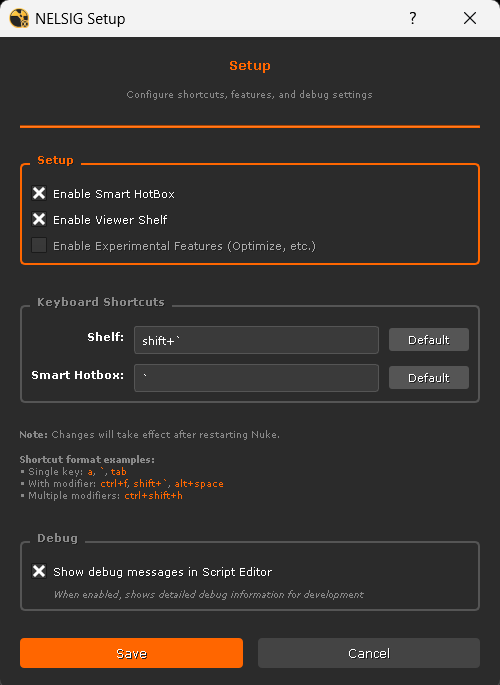
The NGT Setup panel lets you configure shortcuts, enable or disable individual features, and control debug output. Open it from the Nuke menu bar: NELSIG → NGT Setup.
Enable / Disable Features
The Setup section at the top of the panel contains three checkboxes:
| Option | Default | Description |
|---|---|---|
| Enable Smart HotBox | On | When unchecked, the Hotbox will not load on startup and its shortcut will be unregistered. |
| Enable Viewer Shelf | On | When unchecked, the Shelf will not load on startup and its shortcut will be unregistered. |
| Enable Experimental Features | Off | Enables experimental tools such as Optimize. These features may change or be removed in future versions. |
This means you can load only the Hotbox, only the Shelf, or both — depending on your workflow.
Keyboard Shortcuts
The Keyboard Shortcuts section lets you change the trigger keys for the Hotbox and the Shelf. Type the desired shortcut in the text field using the format shown below:
- Single key:
`,a,tab - With modifier:
ctrl+f,shift+`,alt+space - Multiple modifiers:
ctrl+shift+h
Click Default next to each field to restore the original shortcut.
Debug
The Debug section provides a single checkbox:
- Show debug messages in Script Editor — When enabled, all NELSIG tools will output detailed debug information to the Script Editor. This is equivalent to setting the environment variable
NELSIG_DEBUG=1. Useful for troubleshooting.
Troubleshooting
Icons not showing on Linux
Some Linux distributions do not include SVG rendering libraries by default. If toolbar icons appear blank, install the required packages:
# Debian / Ubuntu
sudo apt install librsvg2-common

# CentOS / RHEL
sudo yum install librsvg2
No NELSIG menu after restart
- Check that
menu.pyis in the root of your.nukedirectory, not inside a subfolder. - Verify the
menu.pysnippet matches the one shown in Step 2 above. - Open the Script Editor and look for any error messages during startup.
Folder structure check
The most common issue is placing the files at the wrong depth. Make sure the path is:
.nuke/node_graph_tools/ngt_init.py   ← correct
.nuke/node_graph_tools/node_graph_tools/ngt_init.py   ← wrong (nested too deep)
General issues
- Set the environment variable
NELSIG_DEBUG=1before launching Nuke to enable verbose logging in the Script Editor. - If a specific tool fails to load, the rest of the toolkit will still work — check the Script Editor for the specific error.