Edit Similar
Spreadsheet-style multi-node editing
Overview
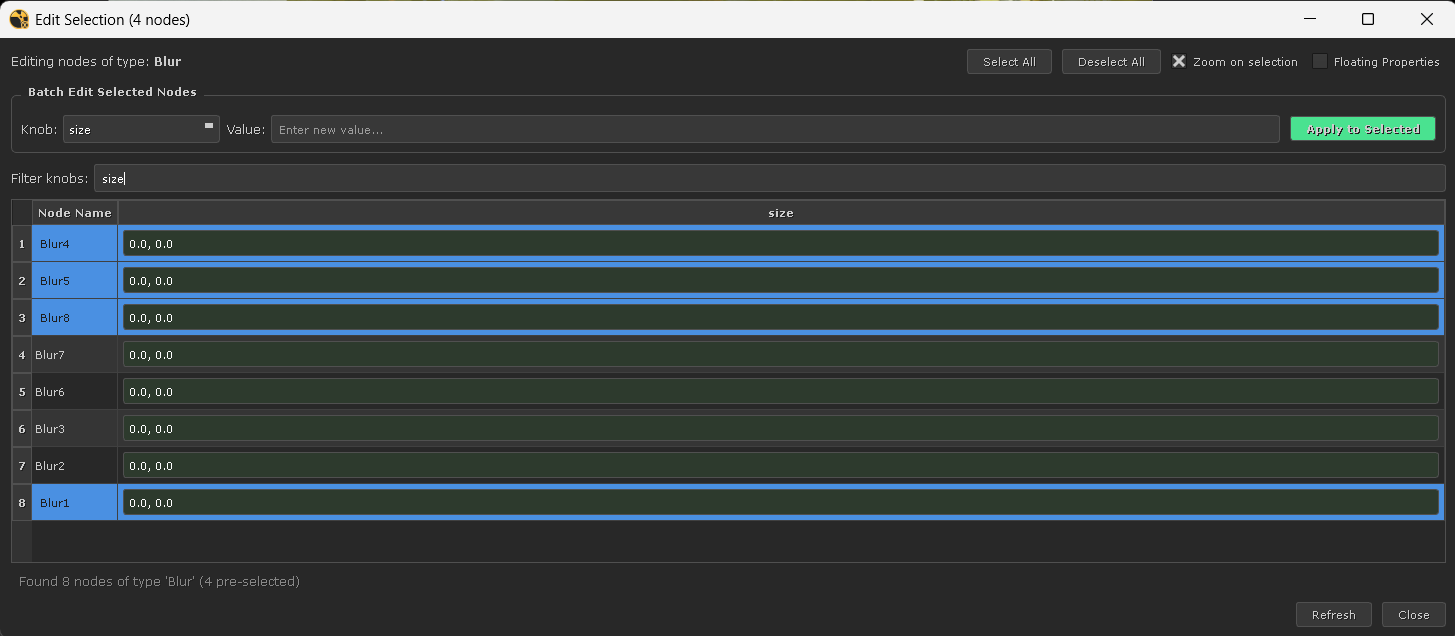
Edit Similar lets you view and modify knob values across every node of the same class in a single spreadsheet. Select a Blur, launch Edit Similar, and instantly see every Blur in your script with its key knobs laid out as columns. Change values in bulk, compare settings at a glance, and keep your node graph consistent.
How to Access
There are two entry points depending on whether you want to edit all matching nodes or only your current selection:
Edit Similar (all matching nodes)
Opens a spreadsheet containing every node of the same class in the current script. Select any node and run:
- Hotbox → Edit Similar
- NELSIG menu → Edit Similar
- Python:
edit_similar.run()
# From the Script Editor
import node_graph_tools.tools.edit_similar as es
es.run()
Edit Selection (selected nodes only)
Opens a spreadsheet containing only the currently selected nodes. Useful when you want to compare or batch-edit a specific subset.
- Hotbox → Edit Selection
- Python:
edit_similar.run(selection_only=True)
# Edit only the selected nodes
import node_graph_tools.tools.edit_similar as es
es.run(selection_only=True)
Spreadsheet View
Each row represents a node, each column a knob. The widget used for editing depends on the knob type:
| Knob Type | Widget | Example Knobs |
|---|---|---|
| Boolean | Checkbox | disable, postage_stamp |
| Enum | Dropdown | channels, operation |
| Format | Dropdown | format |
| Integer | SpinBox | samples, first_frame |
| Float | DoubleSpinBox | size, mix, opacity |
| String | LineEdit | label, name, file |
Batch Edit Panel
The batch edit panel sits at the top of the spreadsheet and lets you apply a single value to all selected rows at once:
- Select the target knob from the dropdown.
- Enter the desired value in the text field (supports the multi-dimensional syntax described below).
- Click Apply to Selected to push the value to every selected node.
Live Selection Sync
The spreadsheet selection and the DAG selection stay in sync in both directions:
- Initial selection: When the spreadsheet opens, nodes that were selected in the DAG are automatically pre-selected in the table.
- Spreadsheet → DAG: Clicking a row in the spreadsheet selects the corresponding node in the node graph and zooms to it.
- DAG → Spreadsheet: Selecting nodes in the DAG highlights the matching rows in the spreadsheet.
This makes it easy to locate specific nodes and understand your script layout while editing values.
Table Interaction
| Action | Behaviour |
|---|---|
| Single click on row | Select node, zoom to it in DAG |
| Shift + click | Extend selection (range) |
| Ctrl + click | Toggle individual row in selection |
| Double-click cell | Enter inline edit mode for that knob value |
| Edit widget | Value is applied immediately on change (live editing) |
| Click column header | Sort table by that knob's values |
Value Syntax for Multi-Dimensional Knobs
Knobs like translate, scale, or color have multiple components. The batch edit field supports a flexible syntax to target individual dimensions or apply relative operations:
Syntax Table
| Input | Meaning | Example |
|---|---|---|
50 | Set all components to 50 | translate → (50, 50) |
50/100 | Set component 1 to 50, component 2 to 100 | translate → (50, 100) |
x/50 | Keep X unchanged, set Y to 50 | translate → (current, 50) |
x+10 | Add 10 to X (relative) | translate.x → current + 10 |
y-5 | Subtract 5 from Y | translate.y → current − 5 |
w*2 | Multiply W by 2 | size.w → current × 2 |
h/3 | Divide H by 3 | size.h → current ÷ 3 |
r=0.5 | Set R component to 0.5 | color.r → 0.5 |
+50 | Add 50 to all components | translate → (x+50, y+50) |
-10 | Subtract 10 from all | translate → (x−10, y−10) |
*2 | Multiply all components by 2 | scale → (sx*2, sy*2) |
Variable Sets
The variable names available depend on the knob's dimensionality:
| Variable Set | Components | Used For |
|---|---|---|
x y z | 3D coordinates | translate, rotate, scale |
r g b a | Color channels | color, white, black, multiply |
w h | Width, Height | size, crop |
u v | UV coordinates | UV knobs |
Knob Filter
When dealing with nodes that expose many knobs, use the knob filter to narrow down the visible columns. Type part of a knob name into the filter field and the spreadsheet updates instantly, showing only matching columns.
Preferred Knobs
When the spreadsheet opens, it shows a sensible default knob as the first visible column based on the node class. These preferred knobs make the most common editing task immediate:
| Node Class | Default Knob |
|---|---|
| Blur | size |
| Defocus | defocus |
| Transform | translate |
| Grade | white |
| ColorCorrect | saturation |
| Merge / Merge2 | mix |
| Dissolve | which |
| Shuffle / Shuffle2 | in |
| Tracker | translate |
| Roto / RotoPaint | opacity |
| StickyNote | label |
| Other | First user knob or name |
Context Menu
Right-click any row to access the context menu. The primary action is:
- Open Properties — Opens the standard Nuke properties panel for the selected node, useful when you need full access to all knobs and animations.
Troubleshooting
| Problem | Solution |
|---|---|
| Spreadsheet opens empty | Make sure at least one node is selected before launching. If using Edit Similar (not Edit Selection), ensure there are other nodes of the same class in the script. |
| Knob column shows "N/A" | The knob exists on most nodes of this class but not on this particular instance (e.g., a custom gizmo variant). The cell is read-only in this case. |
| Value does not update | The knob may be driven by an expression or linked. Check the node properties for expression links. |
| Multi-dimensional syntax not working | Ensure the knob is actually multi-dimensional. Single-value knobs like mix only accept plain numbers. |
| Panel does not appear | Check the Script Editor for error messages. Ensure node_graph_tools is correctly installed and loaded. |
Compatibility
| Requirement | Supported Versions |
|---|---|
| Nuke | 11.0v4, 12.x, 13.x, 14.x, 15.x, 16.x |
| Qt Binding | PySide (Nuke 11), PySide2 (Nuke 12+) |
| Python | 2.7 (Nuke 11–12), 3.7+ (Nuke 13+) |
| OS | Windows, macOS, Linux |